
Generating Letters and Reports
Convergence has the capability to create letters, reports, and other documents by merging your case data with document templates. The templates allow you so set up your letters, forms, reports the way you like to see then and place your data into printable documents. Any data field, standard or custom, may be merged into a template.
Generating a New Document
Template based documents may be generated from a case file directory, or the 'Create Letter/Report' page.



To generate a template document for the current case, select the template you want from the menu, and click the button 'Create Letter/Report'.
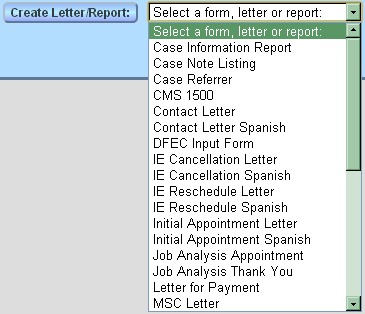
Once you create the document, if you are in a case list, the file will appear in the case file directory. If you are on a different page, you will be taken to a screen where you may proof your document, fill in blanks, or go to an editor to make further changes.
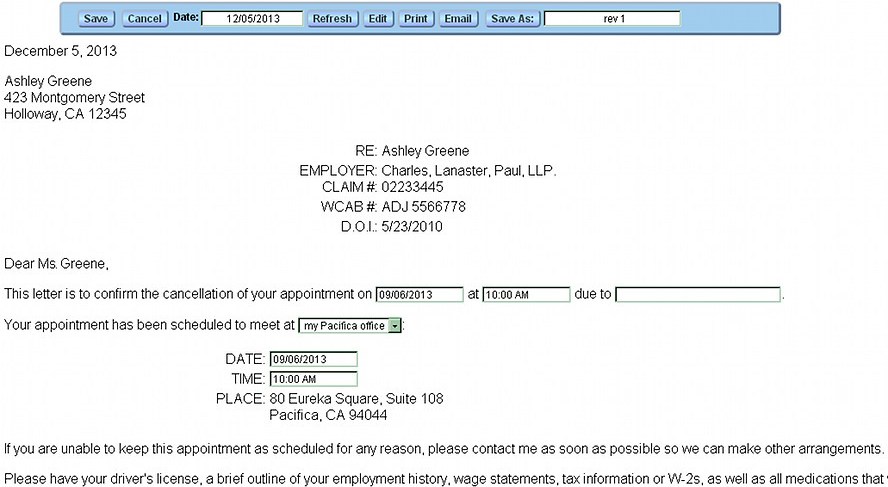
The area at the top of the screen is the document editor palette, with a variety of handy functions for template based documents. The palette my overlap document content, and it may be dragged by your mouse to move it if so, just drag it by any portion that is not a button or field.

The 'Save' button will save any changes you made and return to the Letters/Reports page. The 'Cancel' button exits document editing without saving any changes. The 'Date:' field is the document date. It defaults to the day the document is generated on Convergence, but can be changed. The 'Refresh' button will regenerate the template, incorporating any changes in case data since the document was generated before. The 'Edit' button will take you to an editor where you can make more changes to the document than are allowed on this page. The 'Print' button either redisplays the document with no edit palette for printing, or will download a printable copy of the document, depending on the template type. The 'Email' will take you to the Document Email page. The 'Save As:' button and field allow you to make a new copy of this document with a different name.
What Templates Do
Convergence templates combine preformatted text or documents with data from the Convergence database to create documents unique for each case, such as letters addressed to your clients, or reports based on your case data. Templates can produce output as plain text, HTML, Word compatible files, or PDF files. For the first three file types, text for your document is typed in with special markers for where the data will go. PDF templates are created by uploading a PDF file, and drawing data fields in where they will go on the document. Users with sufficient privilege may create or edit templates. See Template Management for details.
Template Based Documents in the File Directory
When a template based document is generated, it is placed is the current case's file directory.

The top file, a template based document has its name in bold face, lighter blue to indicate it's a template based file, and not an uploaded file like the one below it. Template based files may be refreshed with new data, or edited, while uploaded files are not edited by Convergence. Both may be foldered and moved around in the case file directory in the same way.
When you click on a template based file in the directory, Convergence will send you a download of the generated file in the format of the template (.doc, .pdf, etc) which you can save and edit. Files downloaded this way can be uploaded back up to become stored upload files that won't change.
If you are using Word export .doc templates, you may need to change some Word settings to be able to open the files properly. See MS Word Export Technical Notes for important details about this.
The Letters/Reports page
The page accessed through 'Create Letter/Report' in the popup menu, or through the 'Forms' link in case lists, gives you an alternate view of the file list for your case. This is also the page you return to after saving changes to a document. All template based files are listed in order regardless of what folder they may be in. In addition, the file directory is included on the page so that folders and uploaded files are visible to refer to.

Viewing and Editing Template Documents
Template based documents may be viewed or edited from links in the case file directory, or the Letters/Reports listing page. Depending on the type of template, different editing screens might show up. If your document template is for HTML or Word export, a page like the one below will appear:
The bar at the top is the document editor palette with handy functions for template based documents. It may be moved with your mouse.
The form above only allows changes to text fields and menu selections. Clicking the button 'Edit' will take you to a different editor that allows you to change any text in the document, or change fonts, colors, etc.
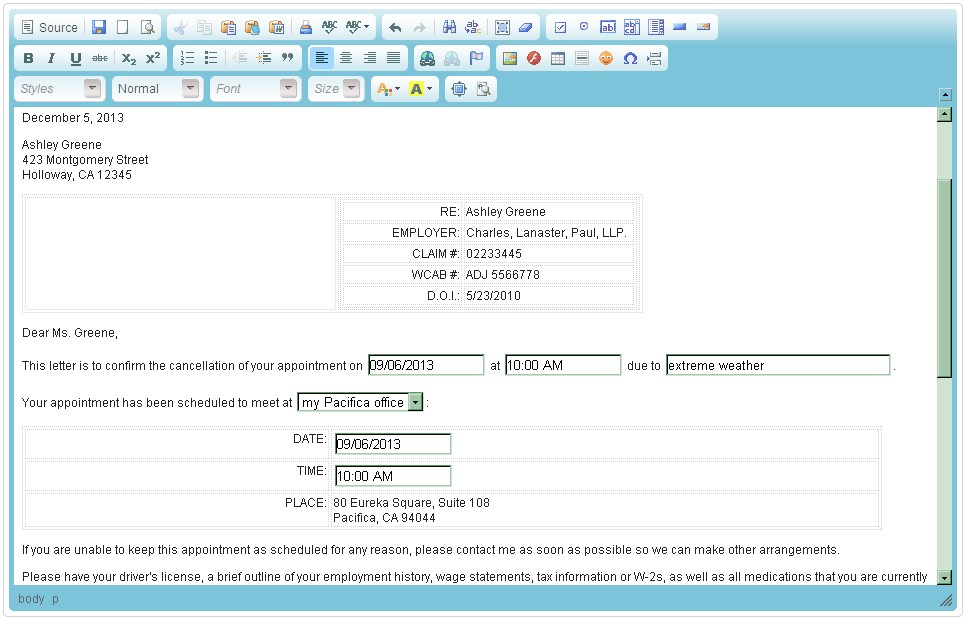
This screen uses CKeditor, the free online HTML editor, which is bundled with Convergence. This full featured editor allows you to changes fonts, colors, layout, styles, etc, with an intuitive interface. The button 'Source' in the upper left corner allows you to edit HTML source directly if you wish to do that. See their documentation to learn more.
Editing document text does not change case data. For example, if you change a phone number in a document with this editor, it only changes this document, and the case record will still contain the unchanged number. Be sure to make changes to case or contact info in the edit case page, or the case contact page that has the phone number.
If you click the edit link for a PDF document, you get a screen like this:
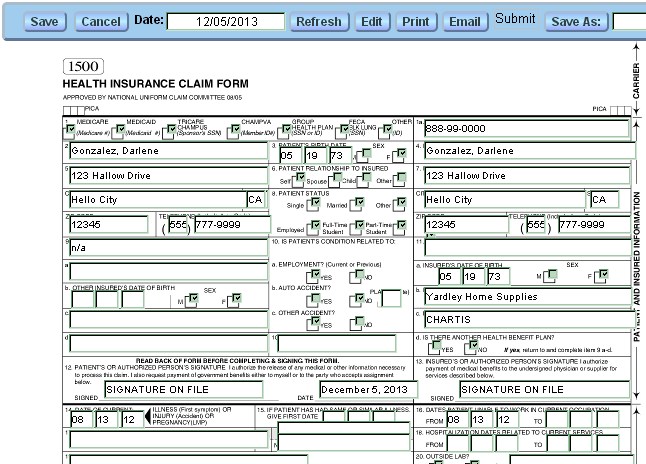
This editable screen is a facsimile of the PDF document that will be produced for print, with data fields overlaid. When you print from a PDF template document, the PDF will appear in full resolution with no visible data fields around your text. When PDF files are uploaded for templates, Convergence takes a snapshot of each page to aid in editing PDF template based documents.
This manual is published by Convergence Case Management Data Retrieval Software, LLC, whose software products are provided for use by parties who have paid for and have a current license to operate the software described herein.
Information in this manual is subject to change without notice, and does not represent any commitment on the part of Convergence Case Management Data Retrieval Software, LLC. The software described in this manual is furnished under a license agreement and may be used only in accordance with its terms and conditions.
© Copyright 2026 Convergence Case Management Data Retrieval Software, LLC
This manual contains propietary information which is protected by Copyright. No part of this document may be reproduced, translated into any language or computer language, or transmitted in any form whatsoever without the prior written consent of Convergence Case Management Data Retrieval Software, LLC.